Questions자주 묻는 질문
How do I add the widget?위젯은 어떻게 붙이나요?
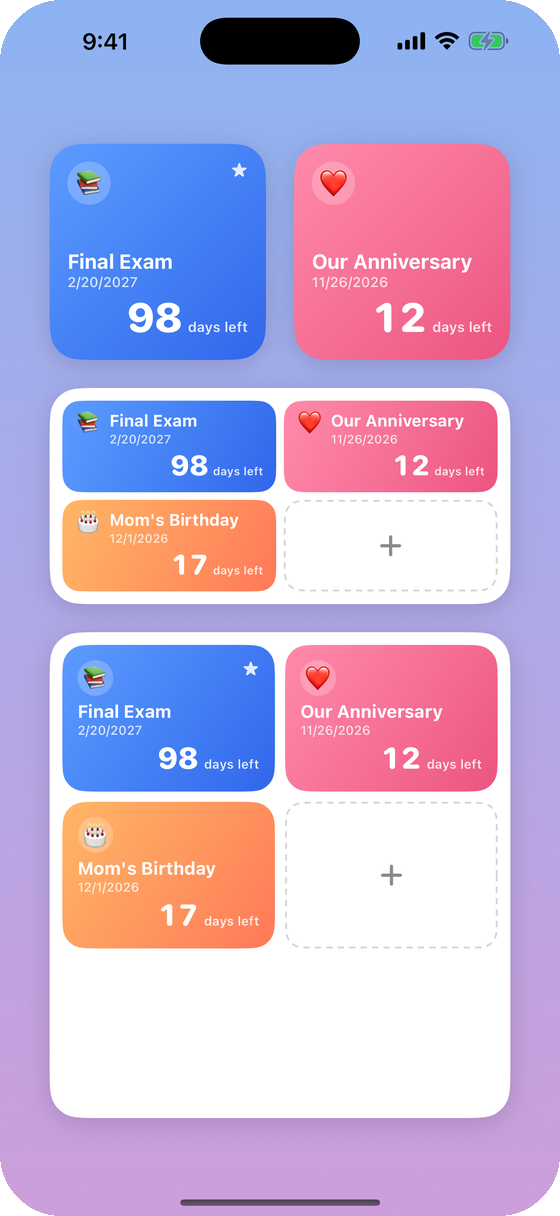
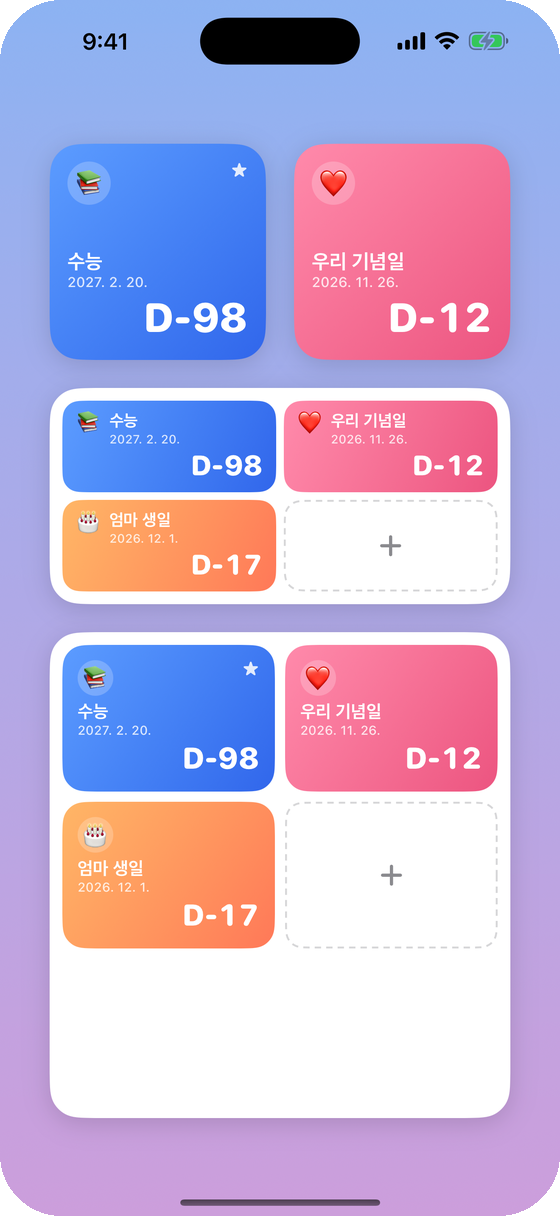
Touch and hold an empty area of your Home Screen, tap Edit → Add Widget, search for DayCount, choose a size and tap Add Widget.홈 화면 빈 곳을 길게 누르고 편집 → 위젯 추가 → DayCount를 검색해 크기를 고른 뒤 위젯 추가를 누르세요.
Which D-Days does the widget show?위젯에는 어떤 디데이가 나오나요?
Favorites first, then the nearest upcoming dates, then past ones.즐겨찾기 → 가까운 날짜 순 → 지난 날짜 순으로 보여줘요.
The widget did not update.위젯이 바로 안 바뀌어요.
Widgets refresh automatically at midnight and usually soon after you edit a D-Day. Removing and re-adding the widget forces a refresh.위젯은 자정마다, 그리고 디데이를 바꾼 뒤 보통 곧 새로고침돼요. 위젯을 지우고 다시 붙이면 바로 바뀌어요.
How do I delete a D-Day?디데이는 어떻게 지우나요?
Swipe the D-Day left in the list and tap Delete.목록에서 디데이를 왼쪽으로 밀고 삭제를 누르세요.
Is my data backed up?데이터가 백업되나요?
D-Days are stored only on your iPhone. Deleting the app deletes them.디데이는 아이폰에만 저장돼요. 앱을 삭제하면 함께 지워져요.
Support지원
Something not working? Email us with your iPhone model and iOS version.문제가 있으면 아이폰 모델과 iOS 버전을 같이 적어 메일 주세요.
dudulabs.dev@gmail.com